Getting started
Logging in
Log in to your RetailFix account, and what to do if it doesn't let you in.
Download the PDF1Open the login form#
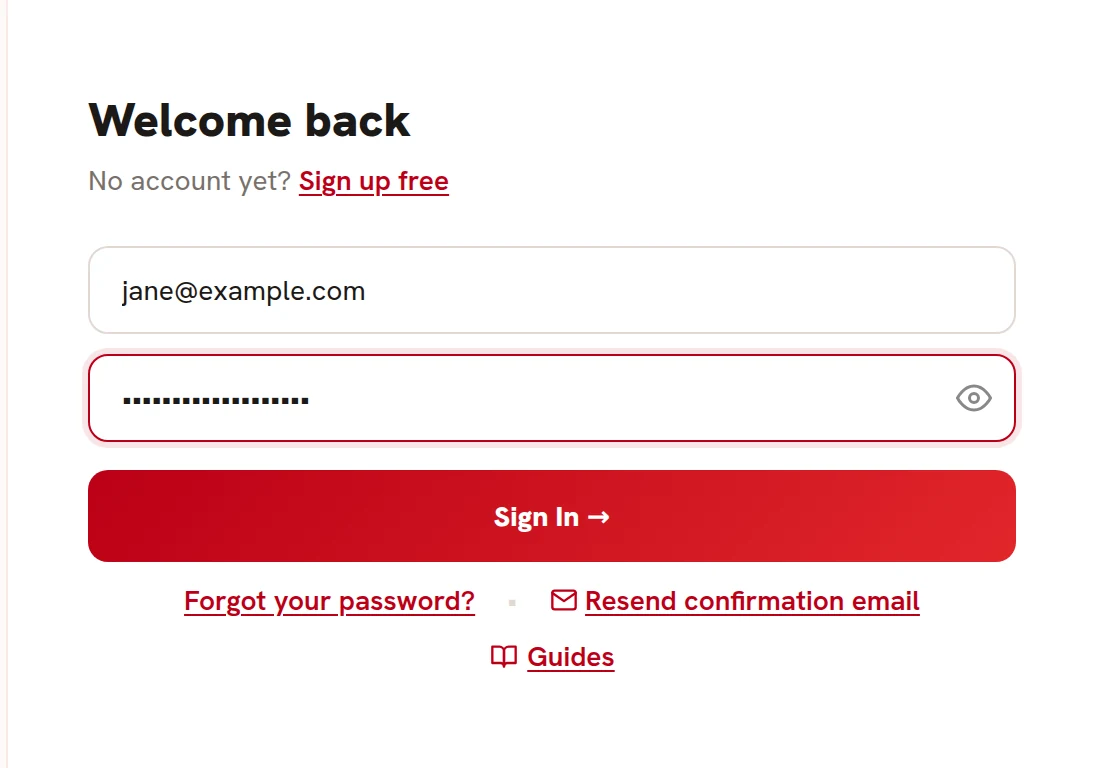
Go to store.retailfix.com and click Sign in above the sign-up form. The Welcome back form opens.
- Enter your email address 1 and your password 2. The eye 3 shows the password as you type it.
- Click Sign In 4.
Forgot your password? Click Forgot your password? 5. Still waiting for your confirmation email? Type your email address in the form and click Resend confirmation email 6.
 123456
2Your dashboard#
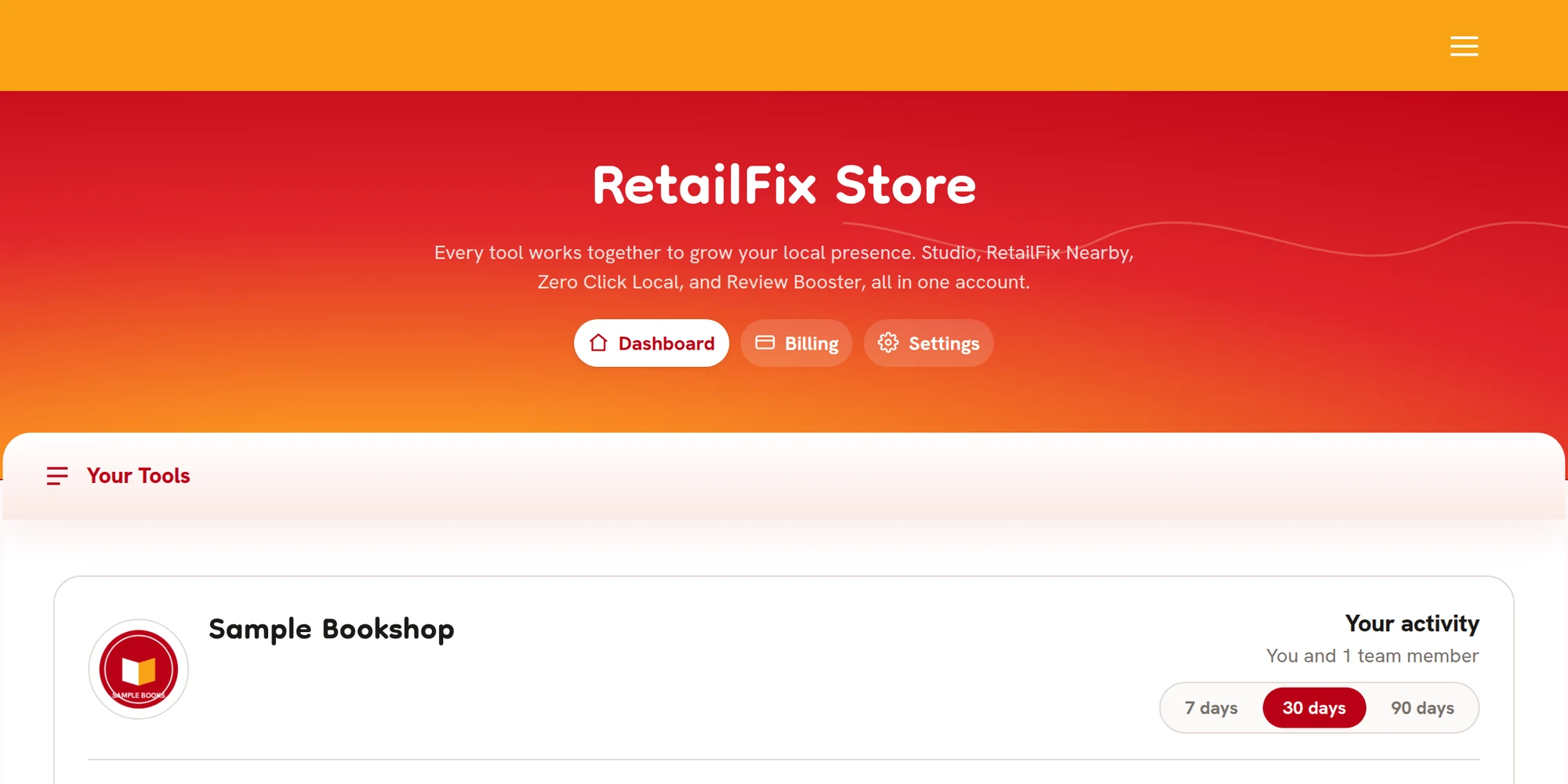
Once you're in, you see your dashboard. The buttons under the heading switch between Dashboard 1, Billing 2 and Settings 3. Billing shows on a Pro account and for anyone who has paid before.
You stay logged in on that device for 14 days.
 123
1233If it doesn't let you in#
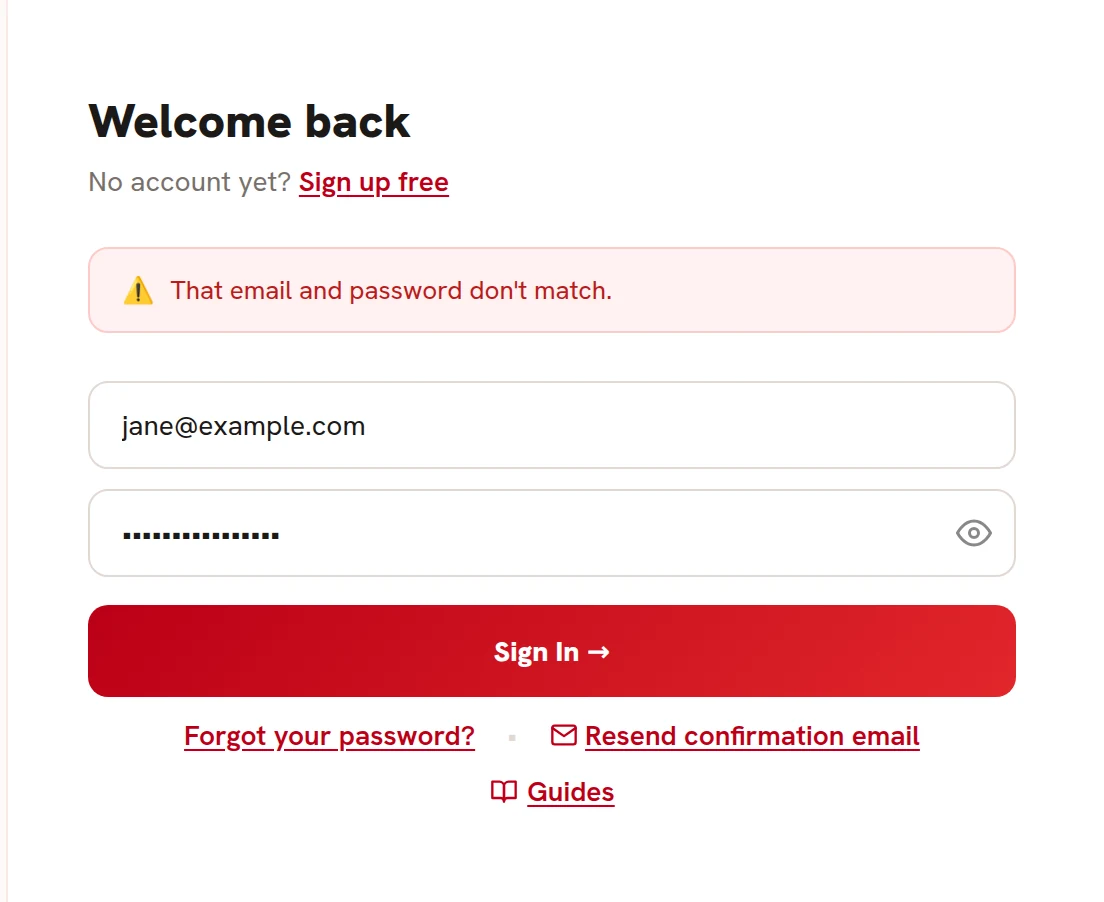
A message appears above the form 1:
- That email and password don't match. Check both and try again, or reset your password.
- Too many failed attempts. Please try again in 15 minutes. After 8 wrong tries, wait 15 minutes.
- Too many failed attempts. Please try again in an hour, or reset your password. Shown after many wrong tries on one email address. Resetting your password gets you straight back in.
- This account has been disabled. Contact your account manager for access. The account holder has turned off your login.
 1
14When it asks for a new password#
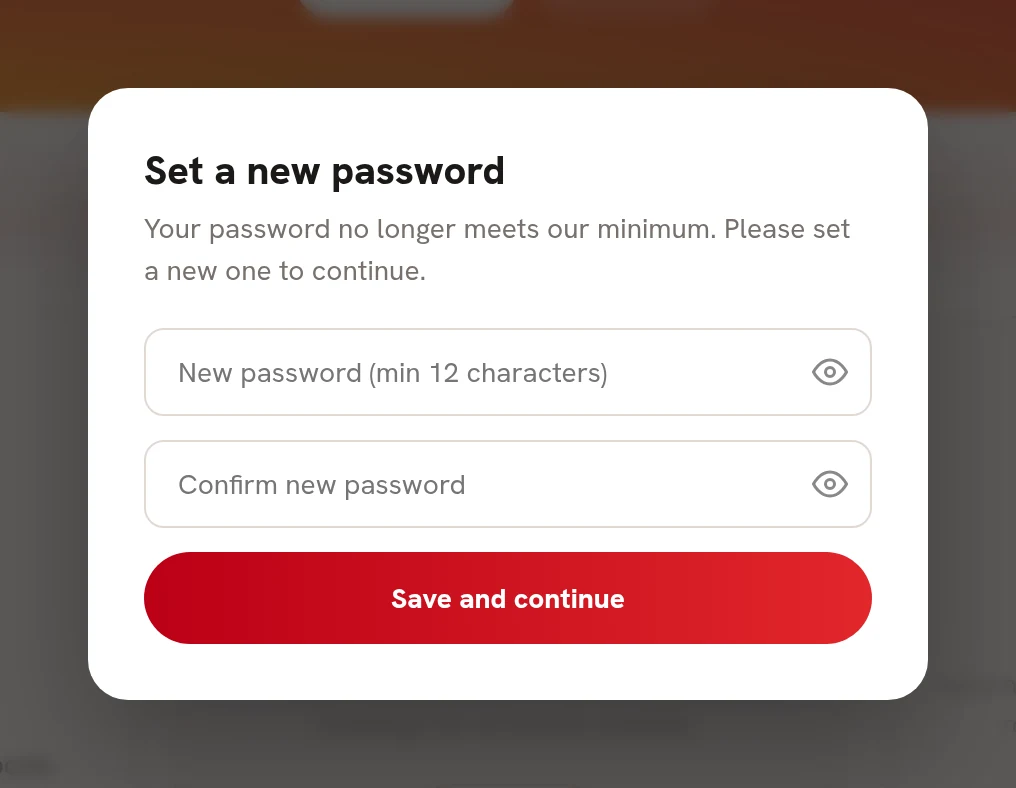
Passwords need at least 12 characters. If yours is shorter, you're asked to Set a new password as soon as you log in. Nothing else works until you do.
Type a new password 1, type it again 2, and click Save and continue 3.
 123
123